How to Record Dual Camera Videos Using iPhone 15
Recording a dual camera video on iPhone 15 lets you capture the scene in front of you and your reaction at the same time. It is useful for travel vlogs, reaction videos, interviews, tutorials, property tours, and any story that benefits from two perspectives. With the Double Camera app, both views are recorded as one synchronized video, so there is no need to align separate clips or repair drifting audio later.
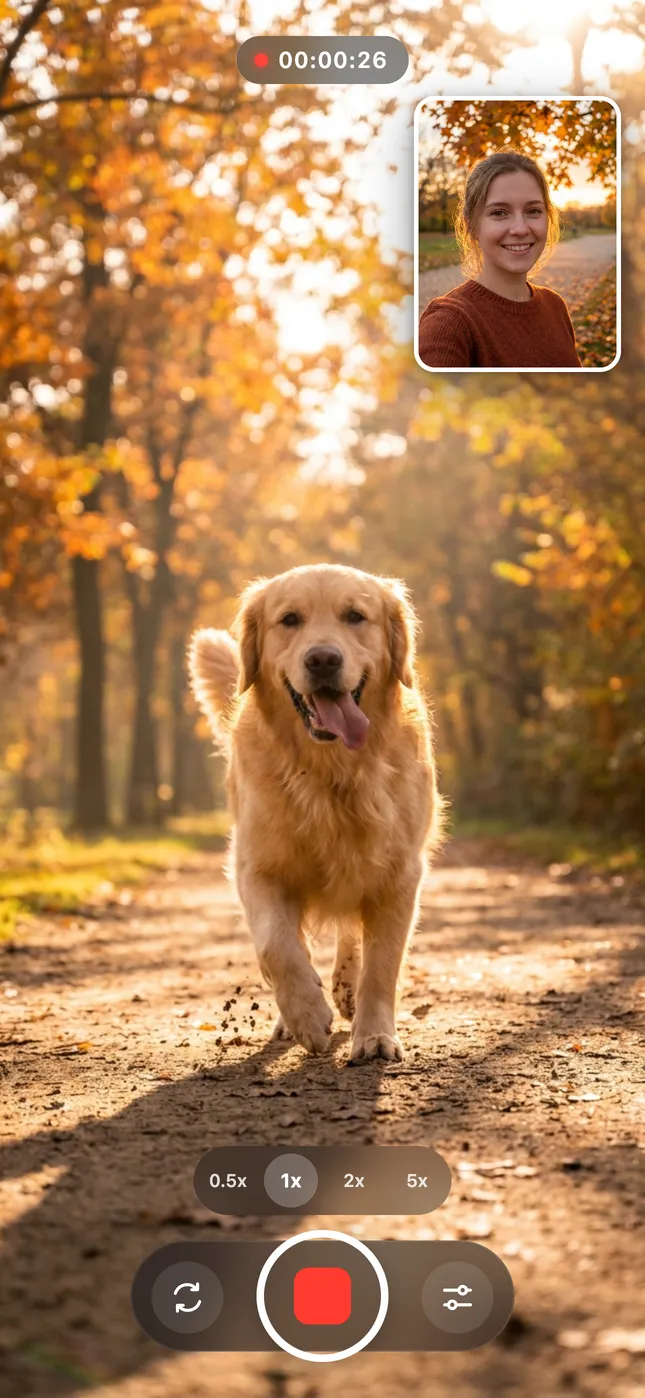
What You Need for Dual Camera Recording on iPhone 15
Start with an iPhone 15, iPhone 15 Plus, iPhone 15 Pro, or iPhone 15 Pro Max running a current version of iOS. Install Double Camera from the App Store and allow camera, microphone, and Photos access when prompted. Camera permission activates the front and back lenses, microphone permission records sound, and Photos access lets the finished video save to your library. Before an important shoot, check available storage, clean both lenses, and charge the phone.
How to Record Front and Back Cameras Simultaneously
The recording workflow is designed to be immediate. You can open the app, choose a layout, and begin without building a complicated editing project.
- Download and open Double Camera on your iPhone 15.
- Allow access to the cameras and microphone.
- Choose the rear camera for the main scene and the front camera for your selfie view.
- Select Picture-in-Picture or a split-screen dual camera layout.
- Position the PiP window where it will not cover the main subject.
- Tap the record button and speak naturally while filming the scene.
- Stop recording, review the synchronized result, and save or share it.
Hold the iPhone steadily with both hands or use a compact grip. For walking videos, move slowly and keep the horizon level. A short test clip will confirm that framing, audio, and lighting look right before you record the full take.
Choose Between PiP Video and Split Screen
Picture-in-Picture video is the best choice when the rear-camera scene should stay large. Place the selfie window in an open corner and use it for commentary or reactions. Split screen gives both views similar importance, which works well for interviews, demonstrations, comparisons, and before-and-after content. Double Camera also lets you adjust borders and placement so the composition feels deliberate rather than crowded.
Tips for Better iPhone 15 Multi-Cam Videos
- Face a window or soft light so your selfie view remains clear.
- Avoid covering either camera or the microphone with your fingers.
- Use headphones or an external microphone in noisy locations.
- Keep important action away from the PiP window and screen edges.
- Record vertically for Reels, Shorts, and TikTok, or horizontally for YouTube and presentations.
Because both perspectives are captured in one take, your expressions and narration remain naturally synchronized with the action. That makes dual perspective video faster to publish and easier for viewers to follow.
Start Recording Dual Camera Videos Today
Download Double Camera, select the two views you want, and tap record. The app turns your iPhone 15 into a practical multi-cam recording tool for vlogging, reaction content, tutorials, and everyday moments.

Explore related guides:
Frequently Asked Questions
Can iPhone 15 record the front and back cameras at the same time?
Yes. Double Camera records compatible front and rear cameras together in one synchronized video.
Which layout should I use?
Use PiP when the scene is most important, or split screen when viewers should see both perspectives at a similar size.
Do I need to synchronize the clips later?
No. The two views are combined during recording and are ready to review immediately.