How to Record Split Camera Videos Using iPhone 14
A split camera video shows two live camera views in one frame. On iPhone 14, that usually means recording yourself with the front camera while the rear camera captures the activity, place, person, or demonstration in front of you. Double Camera combines those perspectives into one synchronized split-screen video, making it useful for reaction content, interviews, tutorials, workouts, travel stories, and real estate walkthroughs.
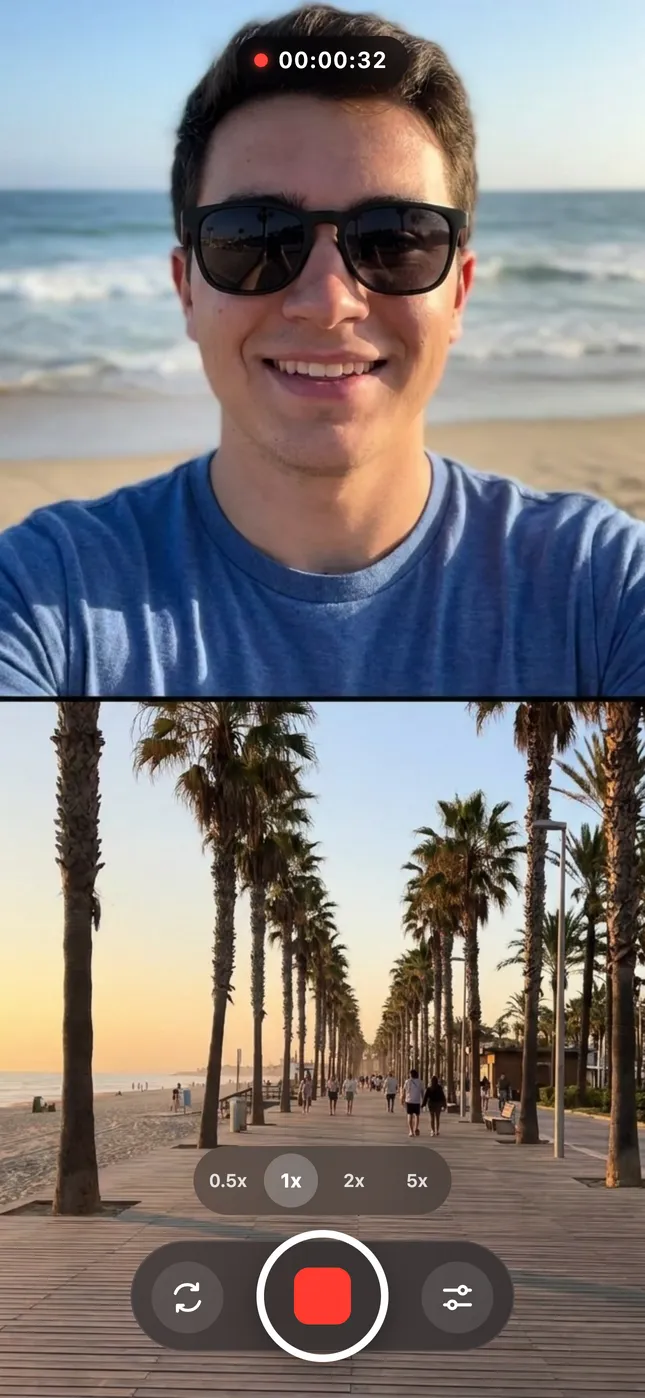
Prepare Your iPhone 14 for Split Camera Recording
Install Double Camera from the App Store, then open it and grant camera and microphone permissions. Allow Photos access if you want recordings saved directly to your library. Wipe the front and rear lenses, confirm that the phone has enough storage, and close demanding apps before a long session. Good preparation reduces interruptions and helps both camera feeds remain smooth.
Choose a location with balanced light. If your face is much darker than the rear-camera scene, move closer to a window or soft light source. For cleaner sound, stand away from traffic and wind, or connect a compatible external microphone.
How to Record a Split-Screen Video on iPhone 14
- Download and launch the Double Camera app.
- Select the front camera and the rear lens that best frames your subject.
- Open the layout controls and choose Split Screen.
- Select a top-and-bottom or side-by-side composition.
- Check that faces and important details are not cut off by the divider.
- Tap record and capture both perspectives in the same take.
- Stop, review the combined video, and save or share it.
Record a five-second test before the final take. Watch it with sound and verify that both halves are easy to understand. If one view looks cluttered, move the phone, simplify the background, or switch to a different rear lens before recording again.
Choose the Best Split Camera Layout
A vertical top-and-bottom split is a natural fit for TikTok, Instagram Reels, and YouTube Shorts. It gives each view the full width of the screen and makes faces easier to see on a phone. A side-by-side split works well for horizontal YouTube videos, interviews, comparisons, and demonstrations where both scenes have a similar shape.
Think about visual priority before you press record. Put the view with more movement or detail in the larger or more comfortable area. Keep the split line away from faces, text, and important objects. Custom borders can separate similar backgrounds and make the finished video easier to read.
Split Camera Ideas for Content Creators
- Reaction videos: show your expression while viewers see the event you are reacting to.
- Tutorials: demonstrate a task with the rear camera while explaining it face to face.
- Travel vlogs: capture a destination and your live commentary without turning the phone around.
- Interviews: keep the presenter and subject visible in a single composition.
- Fitness videos: show the exercise and your coaching cues together.
These formats work because the audience receives context and personality at the same moment. The simultaneous front and back camera recording also removes the extra work of matching two separate recordings.
Improve the Quality of Split Camera Videos
Keep your iPhone 14 steady with two hands, a grip, or a tripod. Frame slightly wider than usual so movement does not leave either half of the screen. Speak close to the phone, avoid strong wind, and monitor bright backgrounds that could make the selfie camera look dark. When filming vertically, leave some space near the top and bottom for social platform controls and captions.
When you are ready, download Double Camera, select Split Screen, and begin recording. The result is a ready-to-share video containing both synchronized viewpoints.

Explore related guides:
Frequently Asked Questions
Can I record split camera videos on iPhone 14?
Yes. Double Camera places compatible front and rear camera views in one synchronized split-screen recording.
Should I use a horizontal or vertical split?
Use top and bottom for most vertical social videos, or side by side for landscape comparisons and interviews.
Will I need to synchronize two files?
No. Double Camera creates a combined composition that is ready to review and share.